Pay with Crypto – Step by Step
BTC • Exodus Wallet





Follow these professional steps to securely pay using Bitcoin (BTC) through the Exodus Wallet. This guide ensures you’re set up properly and ready to complete your purchase confidently.
Note: While we highly recommend Exodus Wallet for ease and speed, we do not have any issues accepting payments from other major Australian exchanges such as CoinSpot, Binance, or CoinJar. However, please be aware that some of these platforms may enforce stricter security protocols — including 24-hour holds, payment rejections, or restrictions when sending BTC to certain addresses. This is beyond our control and depends on the policies of each exchange.
For banking, we recommend using Revolut or UP Banking as they are known to be crypto-friendly and tend to have fewer restrictions when purchasing digital assets or making transfers related to cryptocurrency.
Steps
-
Step 1
 Open your app store and download “Exodus Wallet.” It’s available on both iOS and Android. This trusted app allows secure crypto storage and easy transactions.
 -
Step 2
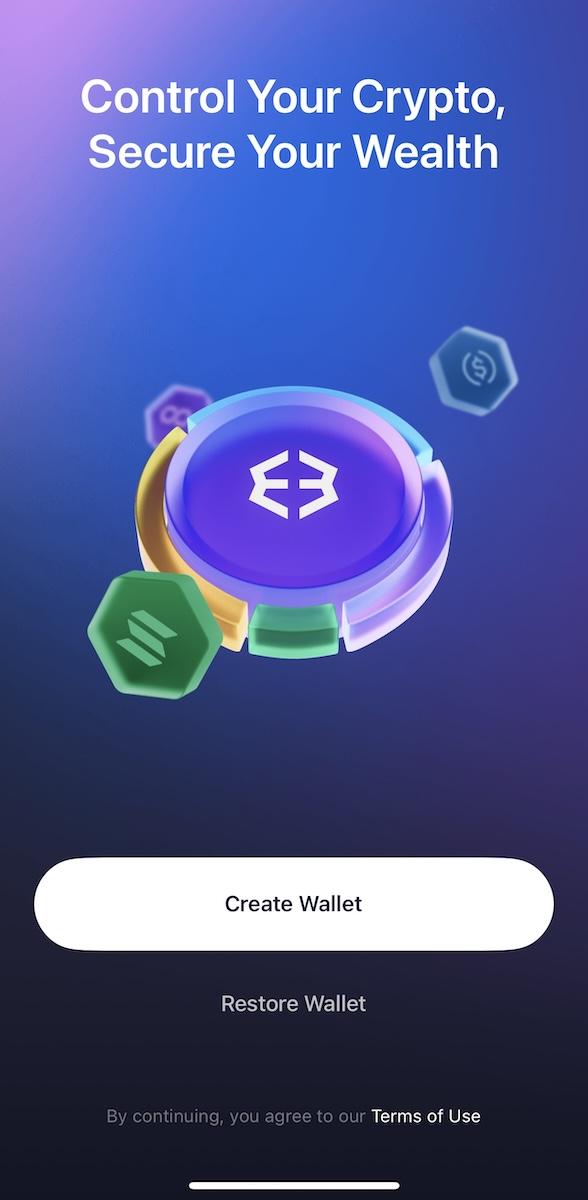 Launch the app and tap “Create Wallet.” Follow the prompts to secure your new wallet. You won’t need to enter personal info. Make sure to save your recovery phrase offline.
 -
Step 3
 Head to settings and switch the display currency to AUD. This makes it easier to track the value of your Bitcoin in your local currency.
 -
Step 4
 Select Bitcoin (BTC) from your wallet dashboard. This is where you’ll manage your BTC balance and initiate transfers.
 -
Step 5
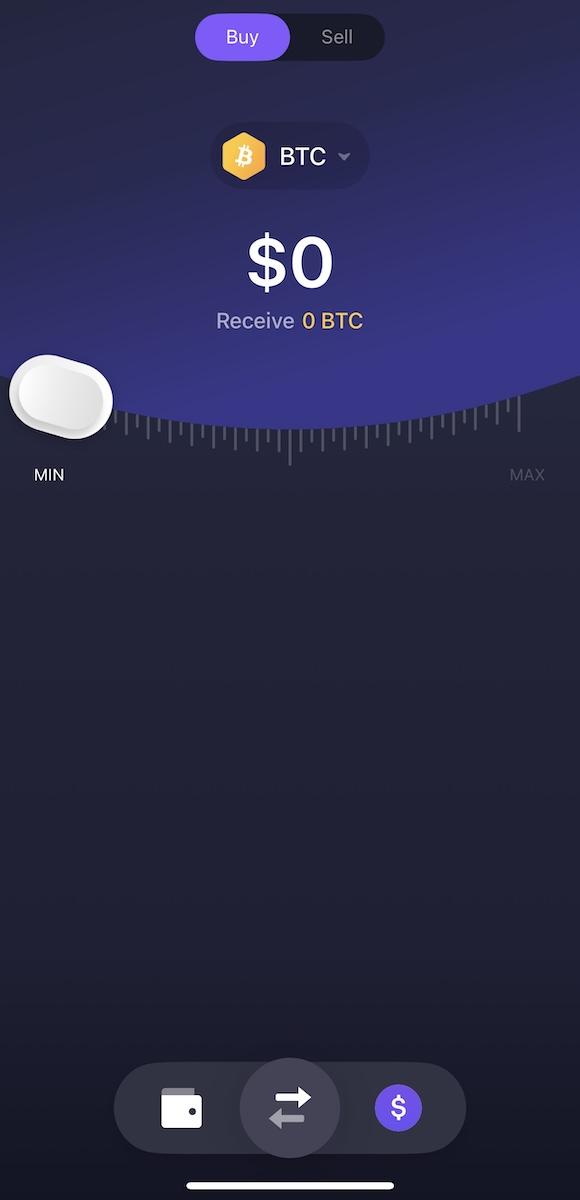 Tap “Buy” and select how much BTC you want. Use the slider or input amount to match the value of your order as shown at checkout.
 -
Step 6
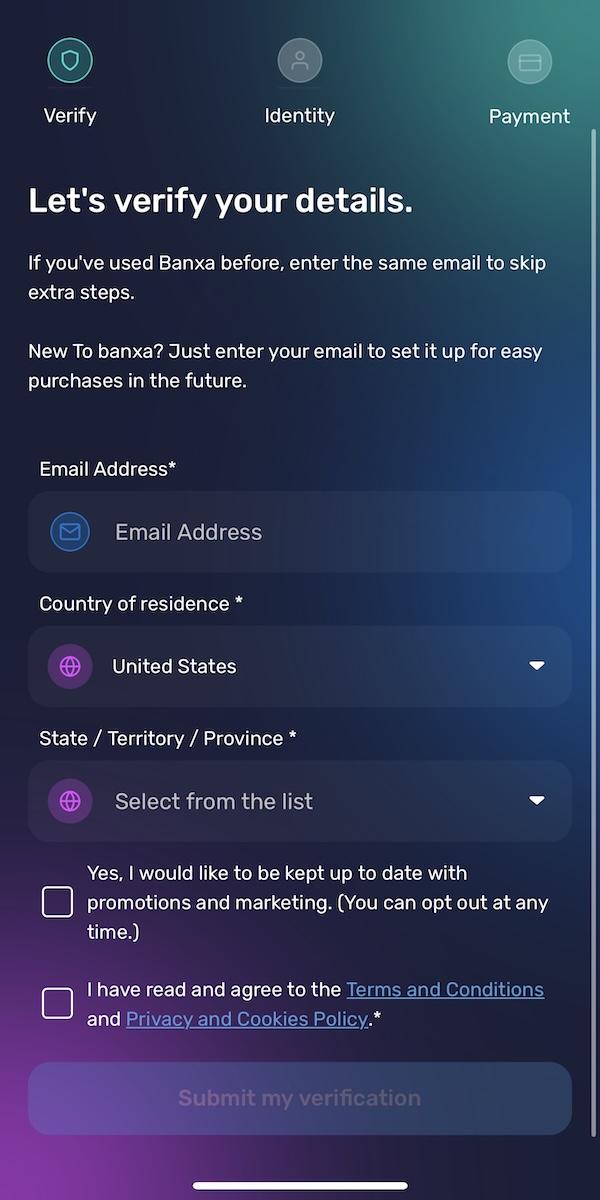 You may be asked to complete KYC (ID verification). This is standard when using debit/credit cards for crypto purchases.
 -
Step 7
 Add your card and confirm the transaction. Once processed, your BTC will arrive in the Exodus wallet — this can take 5–30 minutes depending on network traffic.
 -
Step 8
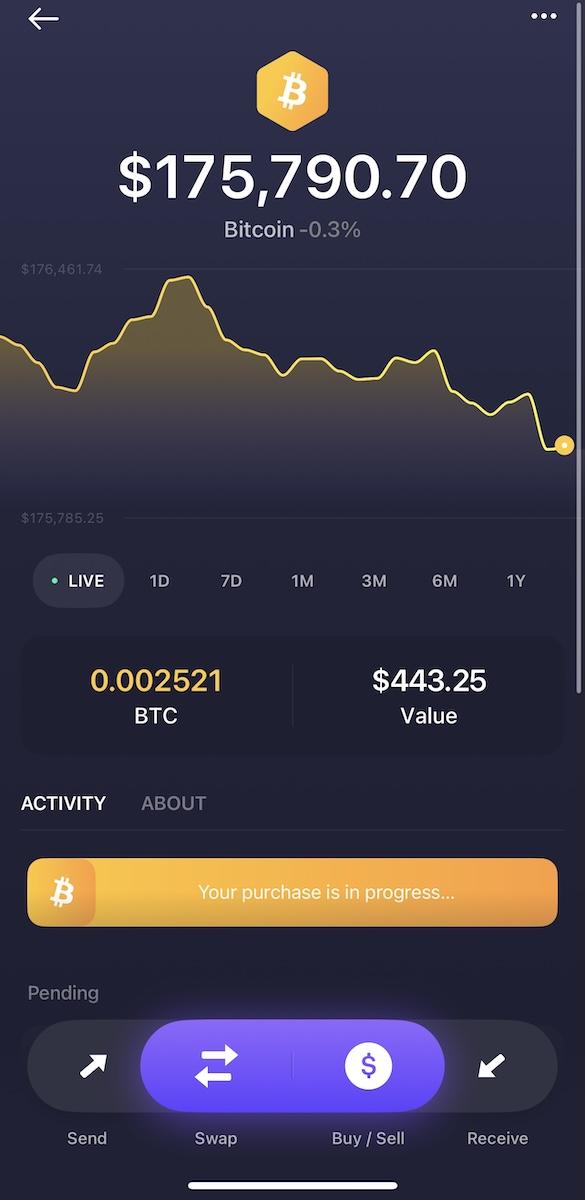 Tap “Send” from the BTC screen. This lets you send the exact amount to our DriveLabs payment address shown at checkout.
 -
Step 9
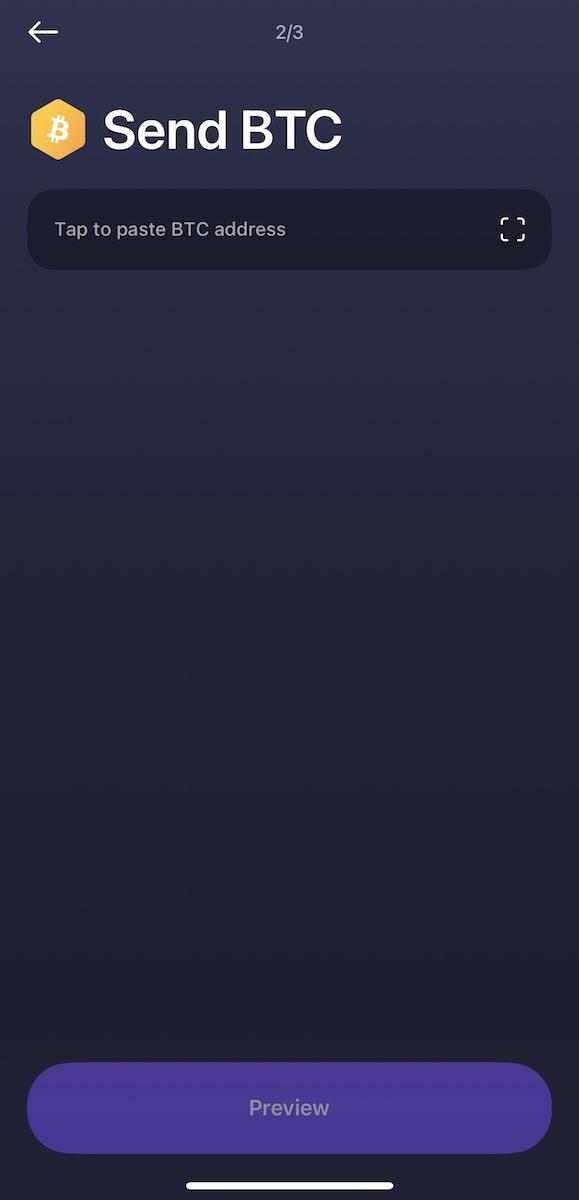 Paste the address you received at checkout. Double-check that it matches exactly. Mistakes can result in lost funds.
 -
Step 10
 Review the amount and wallet address. When ready, slide to send. Transactions on the blockchain are final and cannot be reversed.
 -
Step 11
 Now payment is complete — please allow 5–10 minutes for the transaction to appear on the blockchain and generate a TXID.
 -
Step 12
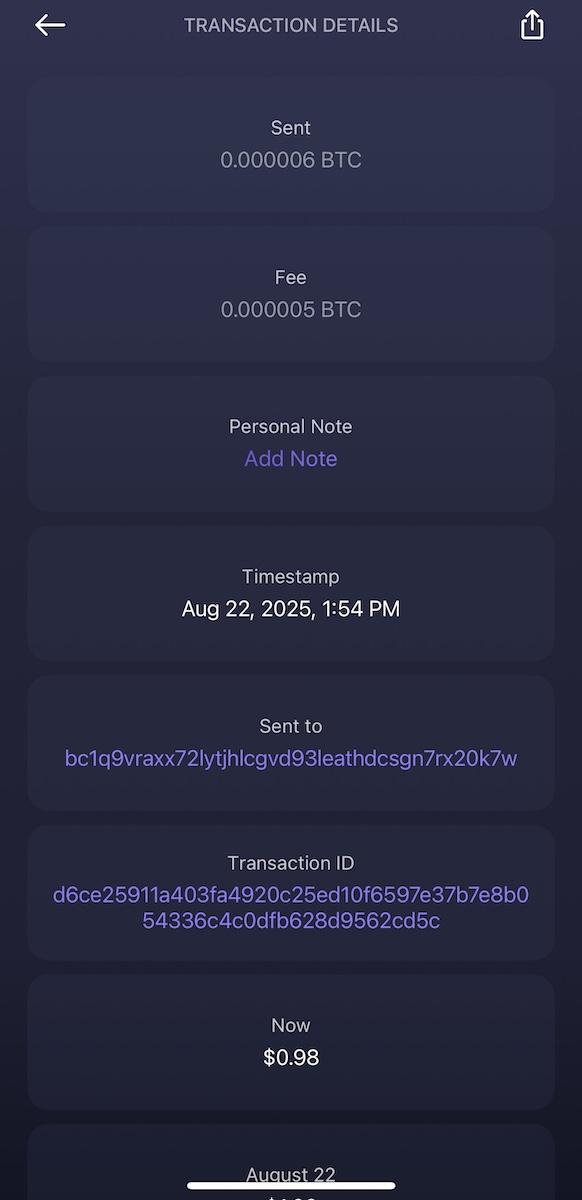 Please send your TXID to support@drivelabs.is so we can verify your payment and begin processing your order promptly.